
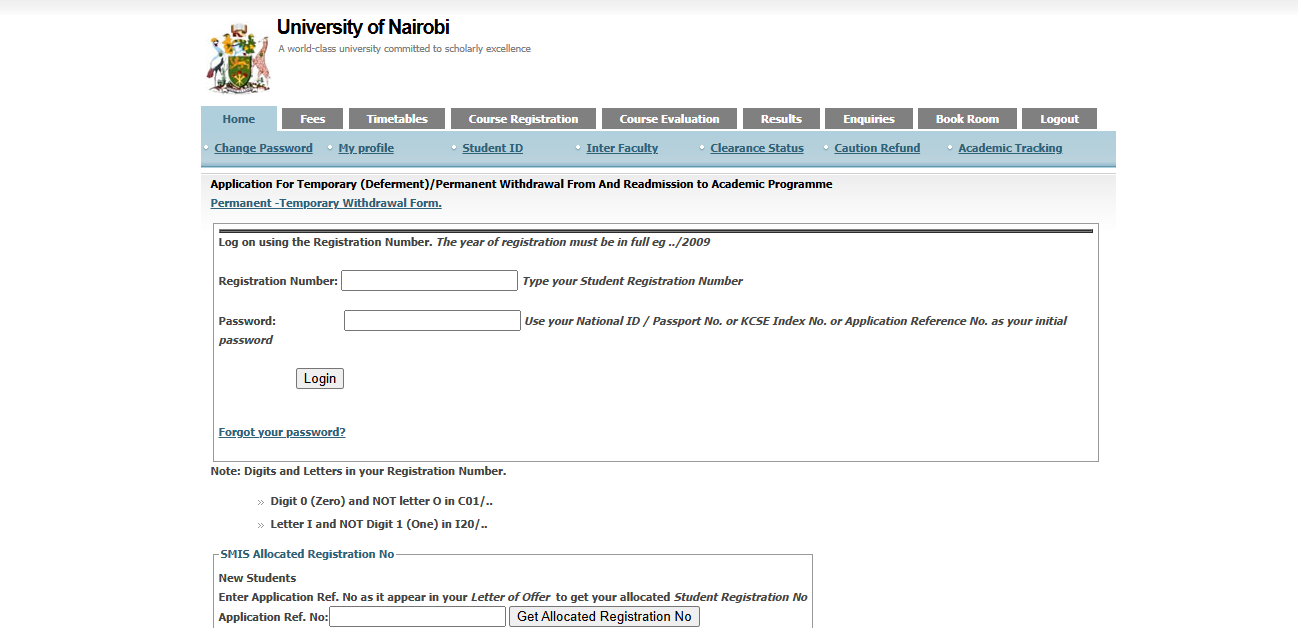
 TIMEBUCKS
Low minimum
payout of just
$3 — start
earning today!
The University of Nairobi student portal is one of the most important tools you will use throughout your time at UON. From registering for units and paying fees to checking your exam results and downloading documents, almost everything at the university is managed online through the portal.
Yet many students — especially new ones — struggle to log in, complete registration, or find the services they need. This University of Nairobi student portal guide walks you through everything step by step. Whether you are a first-year student setting up your account for the first time or a continuing student troubleshooting a login problem, this guide has practical, up-to-date answers for 2026.



What Is the University of Nairobi Student Portal?
The University of Nairobi student portal is an online self-service platform available at students.uonbi.ac.ke. It allows UON students to register for courses, pay fees, access academic transcripts, check exam results, apply for accommodation, and manage their student records — all from one place.
The UON student portal is the central digital hub for all academic and administrative activities at the university. It replaced the older manual systems and is now the primary way students interact with university services.
The portal is accessible from any device — desktop, laptop, or smartphone — as long as you have an internet connection. You do not need to visit any office to complete most transactions, which saves students a lot of time and travel.
TIMEBUCKS
Low minimum
payout of just
$3 — start
earning today!
How to Access the UON Student Portal
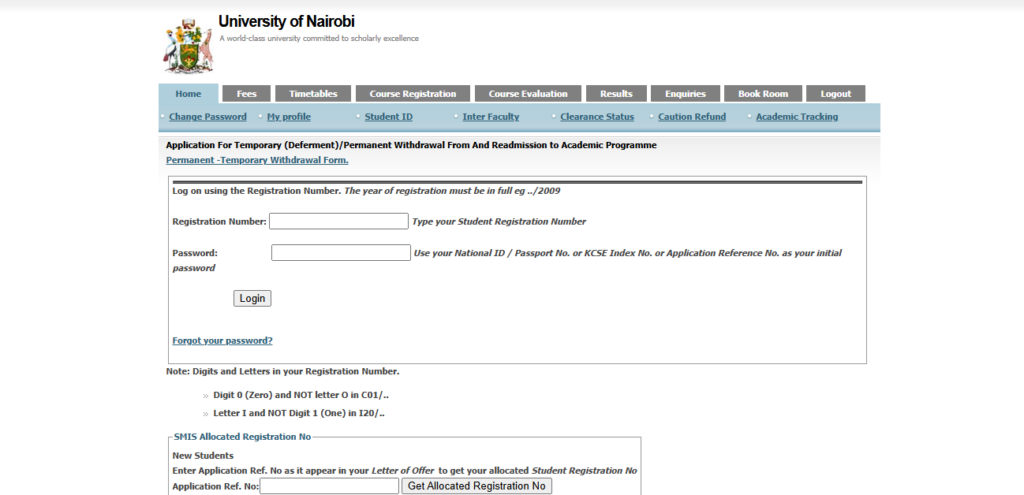
The official University of Nairobi student portal is located at:

Always use this official URL. Avoid clicking on links shared through WhatsApp groups or social media, as fake portal pages are used by scammers to steal student login credentials.
UON Student Portal Login: Step-by-Step
To log in to the UON student portal, visit students.uonbi.ac.ke, enter your student registration number as your username, and use the password provided during account activation. First-time users must activate their account using the credentials sent to their official UON email address.
First-Time Login (New Students)
If you have just been admitted and are logging in for the first time, follow these steps:
Step One: Receive Your Admission Credentials
After admission, UON sends your login credentials — including your student registration number and a temporary password — to the email address you provided during application. Check your inbox and spam folder carefully.
Step Two: Visit the Portal
Open your browser and go to students.uonbi.ac.ke. Make sure you are on the correct site — the URL must begin with students.uonbi.ac.ke.
Step Three: Enter Your Details
On the login page, enter:
- Username: Your student registration number (e.g. S/01/12345/2025)
- Password: The temporary password sent to your email
Step Four: Change Your Password
On your first login, the system will prompt you to change your temporary password. Choose a strong password that you can remember — use a mix of letters, numbers, and symbols. Do not share this password with anyone.
Step Five: Set Up Security Questions
You will also be asked to set up security questions. These are important for recovering your account if you forget your password, so answer them carefully and keep a record.
Returning Students Login
If you are a continuing student:
- Go to students.uonbi.ac.ke
- Enter your registration number and your personal password
- Click Login to access your dashboard
UON Portal Registration: How to Register for Units
One of the most critical tasks on the portal is unit registration — the process of officially enrolling in the courses you will study each semester. Failing to register means you may not be allowed to sit exams, even if you have been attending classes.
How to Register for Units on the UON Portal
Step One: Log In to Your Account
Access the portal at students.uonbi.ac.ke using your registration number and password.
Step Two: Navigate to Academic Registration
From your dashboard, click on Academic in the top navigation menu, then select Unit Registration or Course Registration depending on your programme.
Step Three: Select Your Semester
Choose the current academic year and semester from the dropdown menu.
Step Four: Add Your Units
A list of available units for your programme will appear. Select the units you wish to register for — your programme coordinator will have given you guidance on which units are compulsory and which are electives.
Step Five: Confirm and Submit
Review your selected units carefully. Once satisfied, click Submit to confirm your registration. You should receive a confirmation message on the screen. Save or print this confirmation for your records.
Important: Unit registration usually opens at the beginning of each semester and closes within a set deadline. Late registration attracts a penalty fee. Always register early to avoid complications.
UON Student Portal Services: What You Can Do on the Portal
The University of Nairobi student portal offers a wide range of services. Here is a breakdown of the key ones:
Fee Payment and Statement
- View your fee balance and payment history
- Generate a fee structure for your programme
- Download official fee statements for sponsorship or HELB applications
- Confirm receipt of fee payments made through the bank or M-Pesa
Exam Results and Transcripts
- Check your semester exam results as soon as they are released
- View your cumulative Grade Point Average (GPA)
- Request an official academic transcript
- Download a provisional transcript for job or further study applications
Accommodation Application
- Apply for university-managed student hostels and residential halls
- Check availability and allocation status
- View accommodation payment details
Student ID and Documents
- Request a replacement student ID card
- Download a student confirmation letter (proof of enrolment)
- Access clearance forms at the end of your programme
Communication and Notifications
- Receive official university notices and announcements
- Access timetables and exam schedules
- Communicate with your faculty or department through the portal messaging system
How to Pay Fees Through the UON Portal
Paying fees correctly is important to avoid registration blocks. Here is how the process works in 2026:
Step One: Log In to the Portal
Access your account at students.uonbi.ac.ke.
Step Two: Go to Finance
Click on the Finance tab on your dashboard to view your fee balance.
Step Three: Generate a Payment Reference
Click Pay Fees or Generate Invoice to get a unique payment reference number. This number is required when making payment.
Step Four: Make Payment
You can pay through:
- M-Pesa Paybill: Use the UON Paybill number, enter your payment reference as the account number, and complete the transaction
- Bank Transfer or Deposit: Use the reference number at any approved bank
- Online Card Payment: Some faculties support direct card payment through the portal
Step Five: Confirm Payment
After payment, return to the portal and check your fee balance. Payments usually reflect within 24 hours. If your payment does not reflect after 48 hours, contact the Finance Office with your M-Pesa or bank transaction confirmation.
UON Portal Help: Common Problems and Solutions
Many students experience issues with the UON portal. Here are the most common problems and how to fix them:
Forgotten Password
Click Forgot Password on the login page. Enter your registration number and follow the prompts to reset your password using your security questions or your registered email address.
Account Locked
If you enter the wrong password too many times, your account may be locked. Contact the ICT Help Desk at ict@uonbi.ac.ke or visit the ICT Support Centre on campus to have your account unlocked.
Registration Number Not Recognised
This usually happens with new students whose accounts have not yet been activated. Contact your faculty’s admissions office or the UON ICT department with your admission letter to have the issue resolved.
Results Not Showing
Exam results are uploaded after they have been approved by the relevant board. If your results are not showing, it may mean they have not yet been officially released. Check the university notice board or contact your department directly.
Portal Loading Slowly or Not Opening
The portal sometimes experiences high traffic at the start of semesters. Try accessing it during off-peak hours (early morning or late evening). If the problem persists, clear your browser cache or try a different browser.
Important Tips for Using the UON Student Portal
- Bookmark the official URL — students.uonbi.ac.ke — to avoid landing on fake phishing sites.
- Never share your login details with anyone, including fellow students or people claiming to be UON staff.
- Register for units before the deadline every semester. Missing the deadline can result in penalty fees or missing examinations.
- Keep your contact details updated on the portal so you receive all official communication from the university.
- Check your portal regularly for notices, results, and deadlines. Important announcements are posted there first.
- Save confirmation messages — always screenshot or print any successful registration, payment, or application confirmation from the portal.
Frequently Asked Questions (FAQs)
What is the official URL for the UON student portal?
The official University of Nairobi student portal is at students.uonbi.ac.ke. This is the only legitimate portal for UON students. Always double-check the URL in your browser before entering your login details to protect yourself from phishing websites.
What do I use as my username when logging in to the UON portal?
Your username for the UON student portal is your student registration number, which is assigned to you upon admission. It is printed on your admission letter and usually follows a format like S/01/12345/2025. Your initial password is sent to the email you provided during your application.
How do I register for units on the UON student portal?
Log in to the portal, go to the Academic section, and select Unit Registration. Choose your current semester, select the units applicable to your programme, and submit. Always confirm that your registration was successful and save the confirmation. Unit registration windows open at the start of each semester and have a fixed closing deadline.
Can I access the UON student portal on my phone?
Yes. The UON student portal is accessible on smartphones through any mobile browser such as Chrome or Firefox. Simply visit students.uonbi.ac.ke on your phone. There is currently no dedicated UON mobile app, so always use the browser-based portal and ensure you are on the official URL.
Who do I contact if I have a problem with the UON portal?
For technical issues such as login problems, locked accounts, or portal errors, contact the UON ICT Help Desk at ict@uonbi.ac.ke or visit the ICT Support Centre on the Main Campus. For academic issues such as missing results or registration problems, contact your specific faculty or department office directly.
Final Thoughts
The University of Nairobi student portal is your gateway to managing your academic life at UON. Once you understand how it works, it saves you time and makes your university experience much smoother.
Take time to explore all the services available on the portal, register for your units on time every semester, keep your account details secure, and reach out to the ICT Help Desk whenever you run into problems. The system is there to make your life easier — use it to your advantage.
Best of luck with your studies at the University of Nairobi.
Read also:
TIMEBUCKS
Low minimum
payout of just
$3 — start
earning today!